The Secret Power of the Canon INFO Button (And How to Fix a “Stuck” Screen)
If you’ve ever looked at the back of your Canon camera and thought:
“Why does my screen look different?”
“Where did my image go?”
“Why am I stuck on this settings screen?”
There’s a good chance you accidentally pressed the INFO button.
Most Canon users aren’t fully aware of what the INFO button does — even though they’ve probably pressed it dozens of times.
Let’s break down what it actually does and how to control it.
What the INFO Button Does
LCD Screen Madness
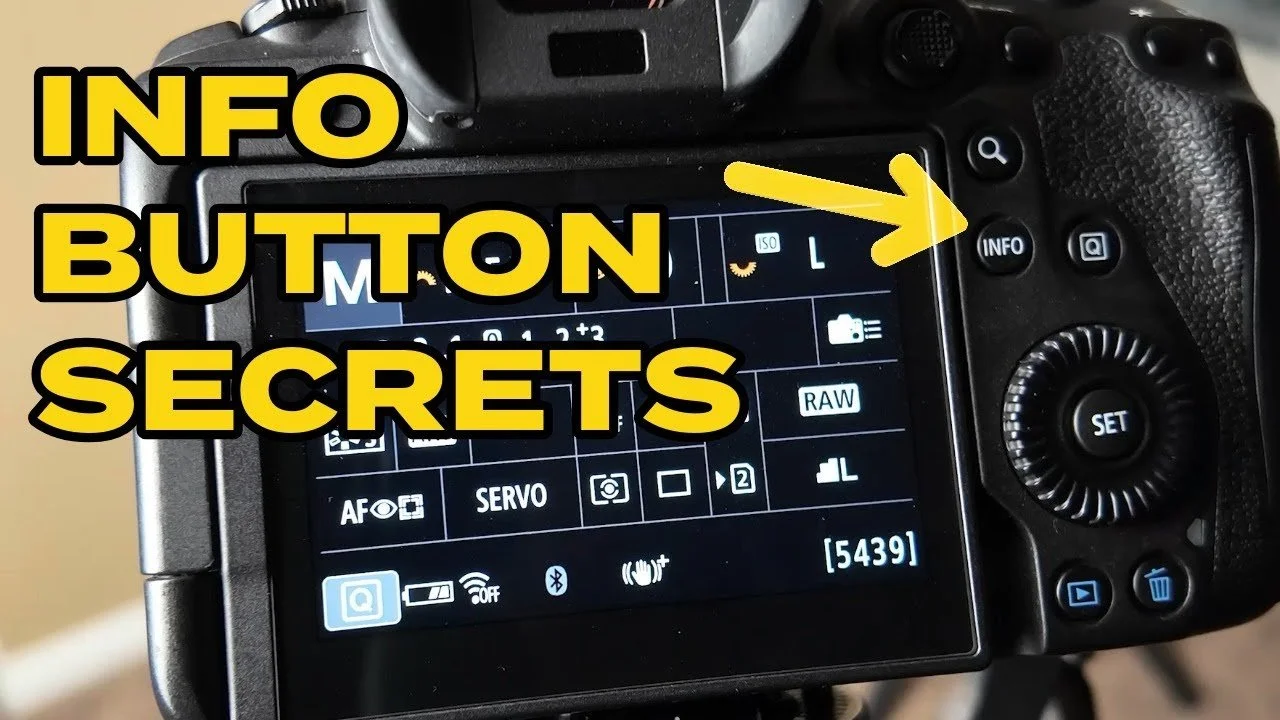
On Canon cameras like the R5, R6, and R7 (and many others), the INFO button cycles through different LCD display screens.
Each press changes what you see on the back of your camera.
For example, you might see:
A full settings display
A cleaner image preview
Additional shooting information on the sides
A level indicator
A histogram
Or a nearly blank screen
If your screen suddenly looks unfamiliar, you’re probably just in a different INFO display mode.
The fix is simple:
👉 Keep pressing the INFO button until you get back to the screen you want.
Turning On the Grid (Rule of Thirds Tip)
While we’re talking about display settings, there’s another useful feature buried in the same menu: the grid display.
By default, the 3x3 grid (Rule of Thirds grid) is usually turned off.
You can enable it in the menu, and it will help you compose your photos more intentionally.
It’s a small setting — but it can make a big difference in your photography.
How to Customize the INFO Screens
Here’s where it gets powerful.
You don’t have to cycle through screens you don’t want.
On cameras like the Canon R5 and R6:
Go to the Menu
Navigate to the camera icon (shooting menu)
Find Shooting Info Display
Select Screen Info Settings
You’ll see multiple screen options.
From there you can:
Turn screens on or off
Edit what information appears
Remove clutter
Keep only the displays you actually use
Screens with a checkmark will appear in your INFO rotation.
Screens without a checkmark won’t show up when you press INFO.
Some screens are editable. Others are fixed and can only be turned on or off.
Once you’ve made your changes, press OK.
Now when you press the INFO button, you’ll cycle only through the screens you’ve chosen.
Why This Matters
A lot of photographers post online saying:
“I’m stuck on this screen.”
“I used to see my image. How do I get it back?”
The answer is almost always the same:
👉 Press the INFO button.
Understanding how this works prevents frustration and helps you customize your camera to fit your style.
Final Thoughts
The INFO button seems simple, but it’s one of the most overlooked features on Canon cameras.
It controls:
How much information you see
Whether you see a histogram
Whether a level is displayed
Whether your screen is cluttered or clean
If your camera screen ever looks “wrong,” you’re probably just one button press away from fixing it.
If you’d like to see this demonstrated step-by-step on the Canon R5 and R6, you can watch the full video here (If you have another brand, I am confident you will have a similar function):
👉 YoutTube
Keep practicing.
Get better one photo at a time.